

How To Make A Single Click Shutdown
 You might just want to know to how to Single Click Shutdown on window Xp
Did you know that in Windows XP you can shut down your
computer from the (eventually DOS prompt) command line box?
I think you know so………………..lolzzzzzz
Moreover, you can do
this by clicking your mouse only once.
All you need to do is follow carefully, because I didn’t
have time to make screenshot of it, now follow as posted below
Right-click on an empty Desktop spot -> select New ->
Shortcut -> type shutdown followed by a space, and then enter one or more of
the parameters listed below -> click Next -> type a suggestive name for
your new shortcut -> finally, click Finish.
This is the Shutdown.exe
(located in %systemroot%\System32, usually C:\Windows\System32) syntax:
shutdown [-i|-l|-s|-r|-a]
[-f] [-m \\computername] [-t xx] [-c "Text"] [-d[u][p]:xx:yy]
Valid command line switches:
-a = Abort system shutdown in progress ONLY IF the -t xx
timeout option was already set to ANY value other than 0. ALL switches except
-l and -m are ignored during abort.
-c "Text" = Text comment (case insensitive) to be
displayed in the Message area of the System Shutdown window. MUST be enclosed
between quotes. Maximum allowed 127 ASCII characters.
-d [u][p]:xx:yy = Reason code for shutdown:
u = User code.
p = Planned shutdown code.
xx = Major reason code. Positive integer number less than
256.
yy = Minor reason code. Positive integer number less than
65536.
-f = Force running applications to close without warning.
-i = Display the shutdown interface (GUI). MUST be the first
option!
-l = Log off the current user of the local computer (default
action). Can NOT be used with the -m option unless the current user has
Sysadmin rights, in which case the -m switch takes precedence.
-m \\computername = Remote/network computer name (most
always case sensitive) to log off/restart/shut down. Current user MUST have
Sysadmin rights to be allowed to use this switch!
-s = Shut down the local computer.
-r = Shut down and restart (reboot) the local computer.
-t xx = Set shutdown timer to timeout for xx seconds. IF NOT
specified defaults to 20 seconds. Allowed values between 0 and 99 seconds. The
-a switch is the ONLY one that CAN be used during the timeout period.
NOTES:
The dash (-) in front of these switches can be replaced by a
forward slash (/).
Spaces are NOT required to separate the shutdown command
from ANY following switches, but ARE required to separate ANY switch from its
following parameter(s), if any.
For example:
shutdown -s -c "Shutting down!" -t 3
tells your computer to shutdown after waiting for 3 seconds
while the System Shutdown window will display text above in the Message area.
Optional: after you're done creating your customized
shortcut for shutdown -> right-click on it -> select Properties ->
enter your desired key "combo" in the Shortcut Key box (e.g. Ctrl +
Alt + End) -> click OK/Apply.
From now on just left-click on your shutdown shortcut or hit
that key combination to turn off/restart/log off your computer.
I hope this Helps…if you were lost in this tutorial, Make
sure you drop your comments/suggestion
DON'T FORGET TO USE THE SHARE BUTTON TO HELP SHARE THIS POST TO YOUR FRIENDS AND LIKE THE POST IF IT HELPS YOU. TO GET OUR POST EACH TIME WE UPDATE JUST CLICK ON THE LINK Subscribe to princeonline blog by Email


 Read More
Add your Comment
0
comments
Read More
Add your Comment
0
comments
The difference between DVD-R, DVD+R, DVD+RW and DVD-RW explained
 So many Desktop and laptops users might be confuse seeing
DVD-R, DVD+R, DVD+RW and DVD-RW by the side of their CD ROM so I decided to
make a research on it, and I decided to share it out with you guys.
So many Desktop and laptops users might be confuse seeing
DVD-R, DVD+R, DVD+RW and DVD-RW by the side of their CD ROM so I decided to
make a research on it, and I decided to share it out with you guys.
I hope you will understand it after reading this posts
There's DVD+R, DVD+RW, DVD-R, DVD-RW, and even DVD-ROM!
So what's the difference between all of these different names, aren't all DVDs
the same? Well, it's not quite that simple.
Let's first start with the most obvious difference: some
have R and some have RW. The "R" stands for readable, while the
"W" stands for writeable.
The main difference between DVD-R and DVD-RW, or DVD+R
and DVD+RW is that the R disc formats can only be written to once, and then
it is only readable and can’t be erased for the rest of its digital life. While
RW discs are can be written to and erased many times, they are both readable
and writeable.
"R" discs are perfect if they are only needed to
be written to once, such as giving some files to a friend or transferring them
between PCs. "RW" discs have their strength in the ability to be used
many times over, which is great for routine system backups, etc. And naturally,
the RW discs are slightly more expensive than the R discs, but you'll have to
decide if the trade offs are worth the money.
Now, onto the difference between DVD-R and DVD+R. As I just described
above, DVD-R & DVD-RW are sister discs, the difference being one is
writeable once, while the other is writeable multiple times. The same thing is
true for DVD+R & DVD+RW. So the question is, what's the difference
between the plus and minus?
In order to explain this we must take a trip back in time.
When DVDs were first being developed, there was no industry standard. Multiple
companies were competing to develop what they hoped would be the dominant form
of the future.
The DVD-R DVD+R difference can easily be summarized by the
following:
* The DVD-R/RW
standard was developed by Pioneer, and is used primarily by Apple and Pioneer.
These "minus" discs can only be written to in one layer on the discs
surface. In addition, this format is supported by the DVD forum, but is in no
way an industry standard. DVD-R/RW discs are cheaper than the "plus"
format.
* The DVD+R/RW
format is supported by Philips, Dell, Sony, HP, and Mcft. These discs can be
written to in multiple layers, giving them slightly better and more disc
storage than the "minus" format. Because of this additional capacity,
they are slightly more expensive than "minus" discs.
A couple final things to clear up is the difference between
DVD-ROM and DVD+RW, or the other DVD formats I mentioned above. The DVD-ROM
drive can only read DVDs, while the other DVD drives can read and write data to
DVDs.
And naturally the DVD+RW CD+RW difference can be explained
by the "DVD" or "CD" prefix. DVDs, on average, can store up
to 4.7 GB of data, while a CD can only store about 700 MB of data, or about 15%
of a DVD's capacity. While CDs are slightly cheaper, in my opinion, the
benefits of DVDs are much greater.
So now that you've learned about the difference between
DVD-R, DVD+R, DVD-RW, DVD+RW, and even DVD-ROM, which one is right for you? The
easiest way to determine which is more beneficial is to watch the industry
trends. A few years ago all pre-built computers were shipping with DVD-ROM
drives. Today, most PCs have a burnable DVD drive.
I feel that the benefits of having a burnable DVD drive far
outweigh any additional costs. They store much more data, and they are ideal
for storing your home movies to watch on your DVD player.
My advice is to look at DVD burners that support all of the
major formats I've mentioned above, DVD-R, DVD+R, DVD-RW, and DVD+RW. While a
DVD drive that supports all of these formats may be slightly more expensive, it
will allow you to use any type of DVD disc to burn to, and you'll be protected
from any industry shifts to one format or the other.
I hope the info help…..
DON'T FORGET TO USE THE SHARE BUTTON TO HELP SHARE THIS POST TO YOUR FRIENDS AND LIKE THE POST IF IT HELPS YOU. TO GET OUR POST EACH TIME WE UPDATE JUST CLICK ON THE LINK Subscribe to princeonline blog by Email
 Read More
Add your Comment
0
comments
Read More
Add your Comment
0
comments
FireFox Fast Tweaks
 Recently i posted on how to speed-up your internet connection I recommend you read that post, and also How to download mobile Mozilla Firefox and yesterday i wrote on Speed up Mozilla FireFox and today i thought of sharing another way i speed up my Mozzila
Yes, firefox is already pretty damn fast but did you know that you can tweak it and improve the speed even more?
That's the beauty of this program being open source.
Here's what you do:
In the URL bar, type “about:config” without quotes and press enter. This will bring up the configuration “menu” where you can change the parameters of Firefox.
Note that these are what I’ve found to REALLY speed up my Firefox significantly - and these settings seem to be common among everybody else as well. But these settings are optimized for broadband connections - I mean with as much concurrent requests we’re going to open up with pipelining… lol… you’d better have a big connection.
Double Click on the following settins and put in the numbers below - for the true / false booleans - they’ll change when you double click.
Code:
browser.tabs.showSingleWindowModePrefs – true
network.http.max-connections – 48
network.http.max-connections-per-server – 16
network.http.max-persistent-connections-per-proxy – 8
network.http.max-persistent-connections-per-server – 4
network.http.pipelining – true
network.http.pipelining.maxrequests – 100
network.http.proxy.pipelining – true
network.http.request.timeout – 300
One more thing… Right-click somewhere on that screen and add a NEW -> Integer. Name it “nglayout.initialpaint.delay” and set its value to “0”. This value is the amount of time the browser waits before it acts on information it receives. Since you’re broadband - it shouldn’t have to wait.
Now you should notice you’re loading pages MUCH faster now!
DON'T FORGET TO USE THE SHARE BUTTON TO HELP SHARE THIS POST TO YOUR FRIENDS AND LIKE THE POST IF IT HELPS YOU. TO GET OUR POST EACH TIME WE UPDATE JUST CLICK ON THE LINK Subscribe to princeonline blog by Email
Read More
Add your Comment
0
comments
User's Guide to Avoiding Virus Infections
 I was doing some research About computer virus and i came up with User's Guide to Avoiding Virus Infections, i hope you will learn from it
Keeping an eye out for viruses
Computer viruses are everywhere! This guide will show you how to stay alert and how to avoid getting infections on your computer. Having an updated virus scanner is only a small part of this, there are many ways that you can prevent having viruses other than a virus scanner, as it will not always save you.
- Types of viruses
There are many type of viruses. Typical viruses are simply programs or scripts that will do various damage to your computer, such as corrupting files, copying itself into files, slowly deleting all your hard drive etc. This depends on the virus. Most viruses also mail themselves to other people in the address book. This way they spread really fast and appear at others' inboxes as too many people still fall for these. Most viruses will try to convince you to open the attachment, but I have never got one that tricked me. In fact, I found myself emailing people just to make sure they really did send me something. It does not hurt to be safe.
- Worms
Worms are different type of viruses, but the same idea, but they are usually designed to copy themselves a lot over a network and usually try to eat up as much bandwidth as possible by sending commands to servers to try to get in. The code red worm is a good example of this. This worm breaks in a security hole in Microsoft IIS (Internet Information Server) in which is a badly coded http server that, despite the security risks, a lot of people use it. When the worm successfully gets in, it will try to go into other servers from there. When IceTeks was run on a dedicated server at my house, there was about 10 or so attempts per day, but because we ran Apache, the attempts did not do anything but waste bandwidth and not much as I had it fixed a special way. Some worms such as the SQL slammer will simply send themselves over and over so many times that they will clog up networks, and sometimes all of the internet. Worms usually affect servers more than home users, but again, this depends on what worm it is. It is suspected that most worms are efforts from the RIAA to try to stop piracy, so they try to clog up networks that could contain files. Unfortunately, the RIAA have the authority to do these damages and even if caught, nothing can be done.
- Trojans
Trojans are another type of virus. They are simply like a server in which enables hackers to get into and control the computer. A trojan such as Subseven can enable a hacker to do various things such as control the mouse, eject the cd-rom drive, delete/download/upload files and much more.
- MBR virues
Boot sector viruses are another type, they are similar to file viruses, but instead they go in the boot sector and can cause serious damage when the computer is booted, some can easily format your drive simply by booting your computer. These are hard to remove.
Most viruses have various characteristics. For example, a worm can also be a trojan and also infect the boot sector. It all depends on how the virus is written and what it is designed to do. That's why there are not really strong structured categories, as they can easily mix one in the other.
Most viruses have various characteristics. For example, a worm can also be a trojan and also infect the boot sector. It all depends on how the virus is written and what it is designed to do. That's why there are not really strong structured categories, as they can easily mix one in the other.
- Know the potentially dangerous files
Like any other files, viruses must be opened in order to do something. Most viruses come through e-mail as an attachment. Some will make it look like it's someone you know, and it will try to convince you to open an attachment. Never open attachments at any cost! Some viruses will infect files in programs, so opening a program will actually open the virus, maybe the same one, or another part of it.
All files have what is called an extension; This is the 3 last letters after the last period. For example, setup.exe has a file extension of .exe.
Extensions to watch out for are .exe .com .bat .scr .pif .vbs and others, but these are the most seen. .exe .com .bat .pif and .scr are valid extensions for executables. A virus writer will simply rename it to one of these and it will work the same way. .pif is a shortcut to an ms-dos program and will have the ms dos icon, but will still execute whatever code is in it, so an .exe can be renamed to .pif and be run the same way. .bat is a batch file, which can contain instructions to do various file activities, but again, a .exe can be renamed to .bat and it will execute it! .vbs is a visual basic script. For some reason, Microsoft provides this scripting language along with the scripting host to make it more convenient to design and write viruses quickly and easily, I've never seen another use for this scripting language other than for writing viruses. There are programs that are written with that language, but it is compiled into an exe. Exe is the usual extension for programs, you would not have a software CD install a bunch of vbs files all over!
Bottom line is, if you don't know what a file is just don't open it. Some viruses will sometimes be named a way as to mask the real file extension to make it look like a harmless file such as a image file. This is easily noticed, but can still be missed. Simply don't open unexpected files.
If you get something that appears like something legit, just ask the person it came from if they sent it. Most viruses use a friend's address to make it look like it comes from them. The virus does this by using the person's address when sending itself to the address book contacts.
All files have what is called an extension; This is the 3 last letters after the last period. For example, setup.exe has a file extension of .exe.
Extensions to watch out for are .exe .com .bat .scr .pif .vbs and others, but these are the most seen. .exe .com .bat .pif and .scr are valid extensions for executables. A virus writer will simply rename it to one of these and it will work the same way. .pif is a shortcut to an ms-dos program and will have the ms dos icon, but will still execute whatever code is in it, so an .exe can be renamed to .pif and be run the same way. .bat is a batch file, which can contain instructions to do various file activities, but again, a .exe can be renamed to .bat and it will execute it! .vbs is a visual basic script. For some reason, Microsoft provides this scripting language along with the scripting host to make it more convenient to design and write viruses quickly and easily, I've never seen another use for this scripting language other than for writing viruses. There are programs that are written with that language, but it is compiled into an exe. Exe is the usual extension for programs, you would not have a software CD install a bunch of vbs files all over!
Bottom line is, if you don't know what a file is just don't open it. Some viruses will sometimes be named a way as to mask the real file extension to make it look like a harmless file such as a image file. This is easily noticed, but can still be missed. Simply don't open unexpected files.
If you get something that appears like something legit, just ask the person it came from if they sent it. Most viruses use a friend's address to make it look like it comes from them. The virus does this by using the person's address when sending itself to the address book contacts.
- Downloads
Email is not the only way to get viruses; P2P (file sharing programs such as kazaa, winmx, direct connect etc) is also another way to get viruses.
When downloading programs, the main thing to watch out for is the file size. If you are downloading a program that you expect to be rather large such as a game, don't grab a file that is 10KB, since it's most likely a virus. However, I've been caught with a virus even with large files, so file size is not the only thing to watch, as an exe is still valid even if junk is added at the end, so a 64KB virus will still function even if it is turned into 650MB.
Icons are something to look for too, fortunately, virus writers don't take time to put icons. If your download should be a setup file, you should see the icon of a setup file. If it's just the blank icon that typical plain or corrupted exes have, don't open it.
Another thing to do, which should be obvious, is to scan the file for viruses using updated virus definitions. But don't rely on only your virus scanner, as they are not perfect, and if the virus has not been reported to them yet, they won't know to create a definition for it!
When downloading programs, the main thing to watch out for is the file size. If you are downloading a program that you expect to be rather large such as a game, don't grab a file that is 10KB, since it's most likely a virus. However, I've been caught with a virus even with large files, so file size is not the only thing to watch, as an exe is still valid even if junk is added at the end, so a 64KB virus will still function even if it is turned into 650MB.
Icons are something to look for too, fortunately, virus writers don't take time to put icons. If your download should be a setup file, you should see the icon of a setup file. If it's just the blank icon that typical plain or corrupted exes have, don't open it.
Another thing to do, which should be obvious, is to scan the file for viruses using updated virus definitions. But don't rely on only your virus scanner, as they are not perfect, and if the virus has not been reported to them yet, they won't know to create a definition for it!
- Changing settings to stay safe
If you do open a virus, you want to avoid it going to all your friends. The simplest thing to do is to NOT use the windows address book. It is easy for viruses to get through and Microsoft is not doing anything about it. Just don't use it. Put them in spreadsheet or even better write them down somewhere. Don't use the address book.
Another "feature" to avoid is the auto preview. Some viruses can attempt to open themselves just by opening the email. There are security holes in Microsoft mail programs that allow this. In Microsoft Outlook, click on the view menu and remove auto preview. You need to do this for every folder, but the inbox is most important. In Outlook Express, click on the view menu and go to layout. In the dialog box, you will see a check box for show preview pane. Uncheck it and click ok.
Another thing you should change, especially if you download a lot, is the option that allows you to view the file extension. In Win98, go in any folder, click on view then folder options and choose the view tab and where it says hide file extension for known types, uncheck it. In win2k, it is the same process, but instead, go in the control panel and open the folder options icon.
Another "feature" to avoid is the auto preview. Some viruses can attempt to open themselves just by opening the email. There are security holes in Microsoft mail programs that allow this. In Microsoft Outlook, click on the view menu and remove auto preview. You need to do this for every folder, but the inbox is most important. In Outlook Express, click on the view menu and go to layout. In the dialog box, you will see a check box for show preview pane. Uncheck it and click ok.
Another thing you should change, especially if you download a lot, is the option that allows you to view the file extension. In Win98, go in any folder, click on view then folder options and choose the view tab and where it says hide file extension for known types, uncheck it. In win2k, it is the same process, but instead, go in the control panel and open the folder options icon.
- Avoiding server worms
Some viruses, mostly worms, can exploit through servers and affect other servers from servers that have been infected. A good example is the SQL slammer. This was a worm that affected SQL servers run by Microsoft IIS and Microsoft SQL Server. Once the worm gets in, that particular server starts trying to find more exploitable driving internet connections to a halt in the process. Servers running Apache were unaffected by that, except for the many hits to try to get in. IceTeks received about 100 hits per day when it was run on a dedicated home server. Most hits came from major ISPs and other big websites that had no clue they were still affected.
The simple solution to avoid these types of viruses is to NOT use Microsoft based server software for your server, especially if it is a public server. The operating system is also crucial, but the actual server software is much more. Apache, which is free, is much more secure than Microsoft based server programs such as IIS. IIS may be easier to understand and administer, but it saves a lot of hassle to learn how to use Apache. IIS has a large number of vulnerabilities, such as the ability to gain access to cmd.exe and basically delete the whole drive by doing a ../ request in the address bar. These don't require viruses, but simply commands, but there are worms written to automatically make these commands. The code red does this.
The simple solution to avoid these types of viruses is to NOT use Microsoft based server software for your server, especially if it is a public server. The operating system is also crucial, but the actual server software is much more. Apache, which is free, is much more secure than Microsoft based server programs such as IIS. IIS may be easier to understand and administer, but it saves a lot of hassle to learn how to use Apache. IIS has a large number of vulnerabilities, such as the ability to gain access to cmd.exe and basically delete the whole drive by doing a ../ request in the address bar. These don't require viruses, but simply commands, but there are worms written to automatically make these commands. The code red does this.
- Removing a virus
The best way to do this is to do a clean install. However, depending on how bad the virus is, a simple clean install won't remove it. So to be extra sure, you'll want to do a low level format. This is especially true of you got a boot sector virus, as even repartitioning and formatting won't quite remove it, but sometimes you can get away with an fdisk /mbr, but not all the time. here are various removal tools for viruses, it is good to use them and see if they work, but proceeding with the clean install is recommended. You never know if the virus is completely removed by deleting files you suspect are infected. Some viruses such as the Bugbear will close anti virus programs and other programs to make it hard and annoying to figure out what to do. A clean install is the best way to ensure that it's gone for good.
Viruses are out there, don't be one of the many infected ones! Stay alert and stay safe! Don't open unexpected files, regularly update your virus definitions and scan downloaded files!
I hope this article was useful for you!
Viruses are out there, don't be one of the many infected ones! Stay alert and stay safe! Don't open unexpected files, regularly update your virus definitions and scan downloaded files!
I hope this article was useful for you!
DON'T FORGET TO USE THE SHARE BUTTON TO HELP SHARE THIS POST TO YOUR FRIENDS AND LIKE THE POST IF IT HELPS YOU. TO GET OUR POST EACH TIME WE UPDATE JUST CLICK ON THE LINK Subscribe to princeonline blog by Email
Read More
Add your Comment
0
comments
Speed up Mozilla FireFox
Recently i posted on how to speed-up your internet connection I recommend you read that post, and also How to download mobile Mozilla Firefox
So today i decided to share on How you can Speed up Mozilla FireFox, read carefully
2. Set the value of network.http.pipelining to "true".
3. Set the value of network.http.pipelining.maxrequests to "100".
4. Set the value of network.http.proxy.pipelining to "true"
5. Set the value of nglayout.initialpaint.delay to "0" (not availible in newer versions)
DON'T FORGET TO USE THE SHARE BUTTON TO HELP SHARE THIS POST TO YOUR FRIENDS AND LIKE THE POST IF IT HELPS YOU. TO GET OUR POST EACH TIME WE UPDATE JUST CLICK ON THE LINK Subscribe to princeonline blog by Email
Read More
Add your Comment
0
comments
How to Use Any Sim in Any Modem Without Unlocking It
 Recently i posted on how to unlock your internet modems for free so today i will be posting on how i Use other network Sim on my modem
Just Follow then Steps and instructions below

1. Insert SIM in Modem
2. Modem will show invalid SIM, just
ignore it and close modem
software.
software.
3. Start NOKIA PC suite.
4. Go to Nokia pc suite connect
to internet option.
to internet option.
5. Go to Configure. Select your
data card modem,and make all
operator apn setting as like
when we use Nokia mobile
connection.
Eg:- Apn for Airtel – internet.ng.zain.com
data card modem,and make all
operator apn setting as like
when we use Nokia mobile
connection.
Eg:- Apn for Airtel – internet.ng.zain.com
6. Finish set up.
7. Now connect to internet
through PC suite.
through PC suite.

DON'T FORGET TO USE THE SHARE BUTTON TO HELP SHARE THIS POST TO YOUR FRIENDS AND LIKE THE POST IF IT HELPS YOU. TO GET OUR POST EACH TIME WE UPDATE JUST CLICK ON THE LINK Subscrie to princeonline blog by Email
Read More
Add your Comment
0
comments
How to use the Google calculator
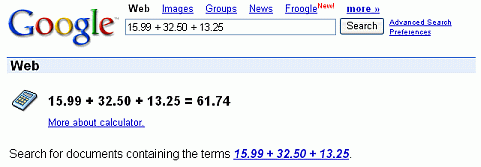 Google’s calculator tries to understand the problem you are attempting to solve without requiring you to use special syntax. However, it may be helpful to know the most direct way to pose a question to get the best results. Listed below are a few suggestions for the most common type of expressions (and a few more esoteric ones).
Most operators come between the two numbers they combine, such as the plus sign in the expression 1+1.
Operator Function Example
+ addition 3+44
- subtraction 13-5
* multiplication 7*8
/ division 12/3
^ exponentiation (raise to a power of) 8^2
% modulo (finds the remainder after division) 8%7
choose X choose Y determines the number of ways of choosing a set of Y elements from a set of X elements 18 choose 4
th root of calculates the nth root of a number 5th root of 32
% of X % of Y computes X percent of Y 20% of 150
Some operators work on only one number and should come before that number. In these cases, it often helps to put the number in parentheses.
Operator Function Example
sqrt square root sqrt(9)
sin, cos, etc. trigonometric functions (numbers are assumed to be radians) sin(pi/3)
tan(45 degrees)
ln logarithm base e ln(17)
log logarithm base 10 log(1,000)
A few operators come after the number.
Operator Function Example
! factorial 5!
Other good things to know
You can force the calculator to try and evaluate an expression by putting an equals sign (=) after it. This only works if the expression is mathematically resolvable. For example, 1-800-555-1234= will return a result, but 1/0= will not.
Parentheses can be used to enclose the parts of your expression that you want evaluated first. For example, (1+2)*3 causes the addition to happen before the multiplication.
The in operator is used to specify what units you want used to express the answer. Put the word in followed by the name of a unit at the end of your expression. This works well for unit conversions such as: 5 kilometers in miles.
You can use hexadecimal, octal and binary numbers. Prefix hexadecimal numbers with 0x, octal numbers with 0o and binary numbers with 0b. For example: 0x7f + 0b10010101.
The calculator understands many different units, as well as many physical and mathematical constants. These can be used in your expression. Many of these constants and units have both long and short names. You can use either name in most cases. For example, km and kilometer both work, as do c and the speed of light.
Feel free to experiment with the calculator as not all of its capabilities are listed here. To get you started, we’ve included a few expressions linked to their results.
1 a.u./c
56*78
1.21 GW / 88 mph
e^(i pi)+1
100 miles in kilometers
sine(30 degrees)
G*(6e24 kg)/(4000 miles)^2
0x7d3 in roman numerals
0b1100101*0b1001
More info on:
http://www.google.co.in/help/calculator.html
DON'T FORGET TO USE THE SHARE BUTTON TO HELP SHARE THIS POST TO YOUR FRIENDS AND LIKE THE POST IF IT HELPS YOU. TO GET OUR POST EACH TIME WE UPDATE JUST CLICK ON THE LINK Subscrie to princeonline blog by Email
Read More
Add your Comment
0
comments
HowTo Convert Nokia Mobile Phones TO Wifi Hotspot
 Now you can use your 3G or mobile
internet on multiple computers or laptops
using wifi and with your Nokia mobile
phone.There is a application called
Joikuspot which will automatically
convert your phone into a
hotspot.Joikuspot has been awarded the
Best Application by nokia in 2010.
There is a free as well as premium version
of Joikuspot available.The premium
Version cost Eur 9.00.The free version
support all the features required by a
common user.
Here are the features of free version Of
Joikuspot
With the free Edition your phone turns
into an open WiFi HotSpot with basic
internet protocol support
New simple WiFi Tethering UI connects
your laptop or iPad to internet via your
phone HotSpot with a click
The Light version is 100% FREE with no
time limitations. No obligations to get
the commercial Premium Ed
Here is the list of the mobile phones
supported by joikuspot
N8, E7, C6-01, C7, E51, E52, E55, E60, E61,
E61i, E63, E65, E66, E71, E72, E73, E75,
E90, N78, N79, N80, N81, N81 8GB, N82,
N85, N86, N91, N93, N93i, N95, N95 8GB,
N95 Americas, N95 8GB Americas, N96,
N97, N97 Mini, 5530 XpressMusic, 5630
XpressMusic, 5730 XpressMusic, 5800
XpressMusic, C5-03, C6, E5, X5, X6, 6710
Navigator, 8800 Erdos, E6, X7
You can download Joikuspot directly from
the Ovi store or from the official site
using the link given below
http://www.joiku.com/products/joikuspot_light
DON'T FORGET TO USE THE SHARE BUTTON TO HELP SHARE THIS POST TO YOUR FRIENDS AND LIKE THE POST IF IT HELPS YOU. TO GET OUR POST EACH TIME WE UPDATE JUST CLICK ON THE LINK Subscrie to princeonline blog by Email
Read More
Add your Comment
0
comments
How To Use Your Free Gmail Space As A Hard Drive For Pc
 This may sound really funny isn't it??
just want to tell you guys is possible to
How To Use Your Free Gmail Space As Hard Drive For Pc
If you’re having extra space on your
Gmail
account and you don’t have extra
space on
your hard disk, you can use that free
Gmail
space as a hard drive. Using a cool
freeware
program called Gdrive. This program
will create an extra
drive inside My Computer, and every time
Gmail
account and you don’t have extra
space on
your hard disk, you can use that free
Gmail
space as a hard drive. Using a cool
freeware
program called Gdrive. This program
will create an extra
drive inside My Computer, and every time
 you use this drive i.e. use files from it,
is
actually downloading and uploading
to
your Gmail account.
1. First download Gmail Drive here
download.Download
2. Extract the files from the
downloaded file
and click Setup.
3. After the installation go to My
Computer
and an extra drive called Gmail Drive
will
appear
4. Double click it and a window with
the
user name and password will
appear.thanks
DON'T FORGET TO USE THE SHARE BUTTON TO HELP SHARE THIS POST TO YOUR FRIENDS AND LIKE THE POST IF IT HELPS YOU. TO GET OUR POST EACH TIME WE UPDATE JUST CLICK ON THE LINK Subscrie to princeonline blog by Email
Read More
Add your Comment
0
comments


